 wardian
Splunk table
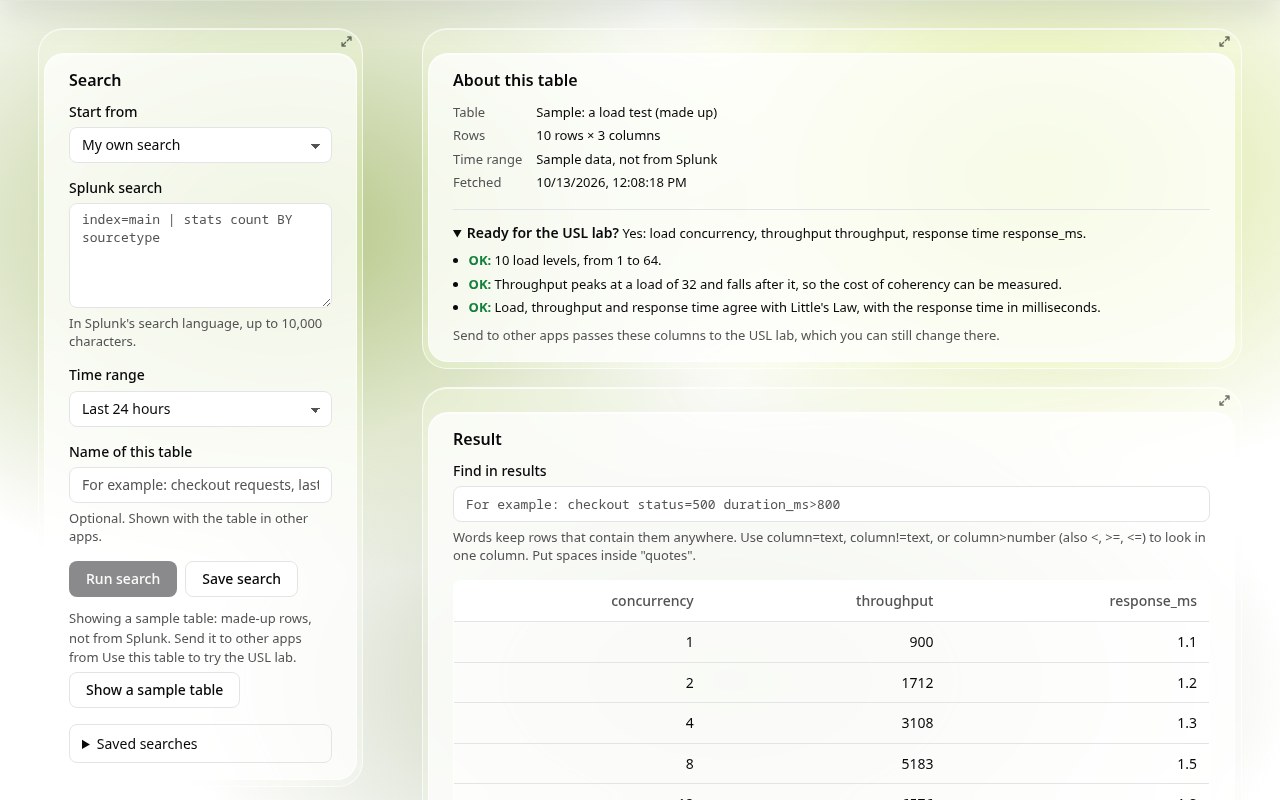
Run a Splunk search and see every row it returns. Other apps, such as the USL lab, can use the table.
It is free. You get a .wardian file to open in Wardian.
Try it
Runs here as it does in Wardian, without its saved data, channels or other apps.
About
For anyone who works with Splunk: run a search and see every row it returns, so you can check the data before another app uses it. The latest table goes out to other apps, such as the USL lab, which lets you choose the load, throughput and response time columns.
What you put in
| Field | Type | Allowed | Default | Required |
|---|---|---|---|---|
| Start from | one of: my own search, find words, a load test template, a live traffic template | — | my own search | yes |
| Words to find (find words only) | short text | up to 200 characters; a phrase in quotes | empty | yes, for that choice |
| In index (find words only) | short text | up to 80 characters of letters, digits, - _ * . | every index | no |
| Splunk search | long text in Splunk's search language | up to 10,000 characters | the last search | yes |
| Time range | a ready range, a calendar range, Last …, Between two dates, or Splunk time codes | — | Last 24 hours | yes |
| How many (Last …) | whole number | 1 to 100,000 | 3 | yes, for that choice |
| Unit (Last …) | minutes, hours, days, weeks or months | — | days | yes, for that choice |
| From / To (between two dates) | date and time | To after From; To empty means now | yesterday 00:00 / now | From: yes |
| Earliest / Latest (time codes) | Splunk time code, like -2d@d | up to 40 characters; Latest empty means now | empty | no |
| Name of this table | short text | up to 120 characters | from the template | no |
| What you want (Ask Claude) | long text | up to 500 characters | empty | yes, to write with AI |
| Find in results | search text | up to 200 characters: words, column=text, column!=text, column>number (also <, >=, <=) | empty | no |
What it shows
- About this table: what the rows are, the search, the time range, when it ran and how long it took.
- Result: every row, 100 at a time, sortable, with Find in results and how many rows match.
- Use this table: Send to other apps, Download CSV, Save table, what was sent, and the saved tables.
- Ask Claude: a search Claude writes from your description, from your index and field names.
How it behaves
- Searches run as background jobs on the Wardian server, with a clock and Stop; you can leave the app meanwhile, and it picks the result up when you come back.
- Without Splunk (not set up in Settings), Run search is off and the status says why and who sets it up. Saved tables still open, and Show a sample table loads made-up rows, titled as a sample and never presented as Splunk's, so every part, and the USL lab, can be tried.
- A field's problem shows when you leave it or press Run search: an empty search, no words to find, or a time range it can't use. The field is marked, the message says what is allowed, and Run search puts the focus on it. Find in results explains a filter it can't read under the field.
- A disabled button has its reason next to it. Searches, saved searches and saved tables are kept in this app.
Layout
- Search (the side column): Start from (
size-lg), Words to find (size-lg) and In index (size-md) when finding words, Splunk search (size-full), Time range (size-md) with How many (size-xs,num) and Unit (size-sm), From and To (size-md), or Earliest and Latest (size-sm), Name of this table (size-lg), Run search and Save search, the progress bar, the status, Show a sample table (without Splunk only), Saved searches. - Ask Claude (the side column): What you want (
size-full), the USL switch, Write with AI. - About this table, Result (Find in results,
size-full, the table, the pager) and Use this table, in the main column.
The tab order follows that reading order. Errors are marked with aria-invalid and explained in hints tied to their fields with aria-describedby.
How it is built
Runs a Splunk search on the Wardian server and shows every row it returns, so you can check the data before an app uses it. The latest table goes out on the channel splunk.table; the USL lab receives it and lets you choose which columns are load, throughput and response time.
A suite of five small parts (ADR-2610080900), each with one job and its own panel, so each viewer can arrange them: put the table full width, hide the AI helper, or move the facts below the table.
| Part | Slot | Job | Contract |
|---|---|---|---|
search | aside | Start from, words to find, the search, time range, name, Run, progress, Save search and the saved searches. Runs the search as a background job and picks it up again when the app opens. Keeps the current table, so it comes back next time. | emits table:ready (retained); listens search:use, table:ready; storage, splunk, db |
ask | aside | Claude writes the search from a description, then search runs it. Hidden when Claude or Splunk is not set up. | emits search:use; splunk, claude:sample |
about | main | What the table is: name, rows, time range, when it was fetched or saved, the search. | listens table:ready |
rows | main | Find in results, sort by any column, the table, the pager. | emits table:view (retained); listens table:ready; db |
keep | main | Send to other apps, Download CSV, Save table and the saved tables. | emits table:ready (retained); listens table:ready, table:view; storage, db, claude:downloads; sends splunk.table |
How a search flows: search (or ask → search:use → search) runs it and emits table:ready {table, send: true} → about and rows draw it, and keep sends it on splunk.table at once. rows emits table:view (the find text and the sort), so keep's CSV saves the rows on screen. Opening a saved table in keep emits table:ready {table, send: false}; search keeps it as the current table.
shared/ holds what several parts use, listed in suite.json "scripts" so each frame gets its own copy: cells.js (number tests, CSV cells, row counts), find.js ("Find in results" in memory and as SQL, the sort), range.js (reading the time range) and saved.js (the saved lists). apps/search/presets.js and apps/search/form.js are the search part's own scripts.
Find in results filters the rows on the page. Plain words match any cell; column=text, column!=text and column>number (also <, >=, <=) look in one column. The CSV then holds only the matching rows. The table sent to other apps is always the full result.
The message on splunk.table holds title, fields, rows, search, range, rangeLabel, at, seconds, truncated and cut (rows left out to fit one 256 KB message). A ready-made search also sends about (what each column means), units and use (which columns are load, throughput and response time). A table in the database also sends dataset, which the lab reads a page at a time.
The live-traffic searches keep a minutes column: how many minutes of traffic each row averages. A row that rests on few minutes deserves less trust than one that rests on hundreds.
Saved searches and tables. Save search keeps the search, its time range and its name under a name of your choice. Save table keeps a copy of the current table: in the app's database as a table named saved_… (so a new search does not replace it), or, on a host without a database, in the keep part's storage (up to about 0.7 MB, since the host keeps at most 1 MB per part). You can use, open or delete each one. An opened table can be sent to other apps like a fresh one.
Saving as a web page (ADR-2610080905): rows has a snapshot, so the saved page holds every row the view matches, up to 10,000, not just the page on screen, and says so when it cuts.
Moving data from the one-part version
Before ADR-2610080900 one part, table, kept everything. Each part now has its own storage, so the saved searches and tables must move once. Stop Wardian (or close the app), then run:
node scripts/splunk-table-migrate-storage.js <DATA_DIR>/state/apps/splunk-table.json
It copies the file to .bak first, then moves state and savedSearches to search, and savedTables and savedRows:… to keep. Saved tables in the database stay where they are. A key a part already has is kept, and the old copy stays under table; running it twice does no harm. A search left running by the one-part version is still picked up when the app opens.
What's new
Version 2 Oct 12, 2026
Rebuilt to the new standard: clearer fields with units and limits, help and errors right under each field, sample data labelled, and the app opens straight on its content.
Version 1 Oct 11, 2026
First published.
Ratings and reviews
No ratings yet.